
Why Your WordPress Site Shows Posts Instead of Your Home Page
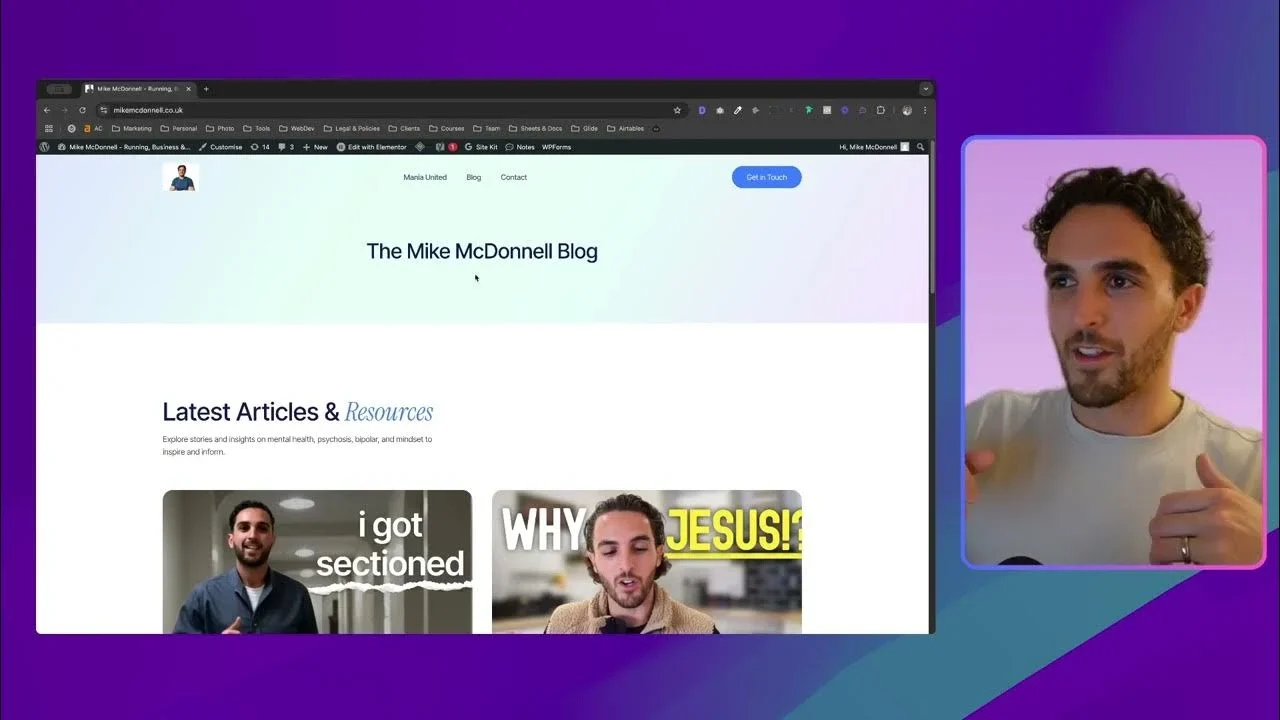
Setting up your WordPress homepage correctly is crucial for making a good first impression on visitors. Many site owners struggle when their homepage displays a blog feed instead of their carefully designed welcome page, but this common issue can be fixed in less than a minute with the right setting
Setting up your WordPress homepage correctly is crucial for making a good first impression on visitors. Many site owners struggle when their homepage displays a blog feed instead of their carefully designed welcome page, but this common issue can be fixed in less than a minute with the right settings.
This simple adjustment can dramatically improve your site’s user experience and professional appearance.
Watch my step-by-step video guide to solve this problem:
Why Your WordPress Homepage Shows Blog Posts
If you’re seeing a chronological list of your blog posts instead of your intended homepage, don’t worry, your site isn’t broken. This is actually the default setting in WordPress, designed for blogs rather than business websites or portfolios.
Many beginners and even experienced freelancers can miss this setting when building a site quickly, resulting in a homepage that doesn’t match the client’s expectations.
How to Set a Static Page as Your Homepage
Step 1: Create Your Homepage Content
Before changing settings, make sure you’ve already created the page you want to use as your homepage. This could be named “Home,” “Welcome,” or any other title that fits your site’s purpose.
Step 2: Access Reading Settings
To change your homepage display:
- Go to your WordPress dashboard
- Navigate to Settings → Reading
- Look for the “Your homepage displays” section
Step 3: Select “Static Page” Option
In the Reading Settings, you’ll see two options:
- Your latest posts (the default setting)
- A static page (select this option)
Once you select “A static page,” two dropdown menus will appear: one for “Homepage” and another for “Posts page” if you still want a blog section elsewhere on your site.
Step 4: Choose Your Homepage
From the “Homepage” dropdown, select the specific page you want visitors to see first when they land on your site. This is typically your “Home” or “Welcome” page that introduces your business or portfolio.
Step 5: Save Your Changes
After selecting your preferred homepage, scroll down and click the Save Changes button. Visit your site to verify the changes have taken effect.
Troubleshooting: Page Not Appearing in Dropdown
If your intended homepage doesn’t appear in the dropdown menu, it’s likely because:
- The page hasn’t been published yet (it might be in draft mode)
- The page was accidentally moved to trash
- You need to create the page first
Simply go to Pages → Add New to create your homepage if needed, then return to the Reading Settings to select it.
Professional Tip for Freelancers
If you’re building WordPress sites for clients, always double-check this homepage setting before delivering the project. It’s an easy detail to overlook but can make a significant difference in the site’s professional appearance and user experience.
Making this simple adjustment ensures your client’s site looks polished from day one and prevents confusion when they start managing the site themselves. For more web development tips, visit Glide Marketing.